How a Winery Switched From MetricFire to InetSoft for Its Dashboard Application
Wineries operate in a complex environment where production, distribution, sales, and customer engagement all generate valuable data. Modern winery management increasingly relies on analytics dashboards to monitor operations, identify trends, and make faster decisions.
One winery recently transitioned from MetricFire to InetSoft for its dashboard application after encountering limitations in monitoring flexibility, data integration, and business-level reporting.
The switch enabled the organization to consolidate operational metrics and business intelligence into a unified analytics platform.

Challenges With MetricFire in a Winery Environment
MetricFire is widely used for infrastructure monitoring and metrics collection, particularly for technical environments that rely on Prometheus and Grafana. While the platform performs well for tracking server performance, application uptime, and other infrastructure metrics, the winery discovered that its needs extended beyond system monitoring.
The winery’s leadership team required dashboards that connected production data, vineyard metrics, supply chain activity, and sales performance. MetricFire’s monitoring focus made it difficult to combine operational business data with technical metrics. Managers had to rely on multiple tools to gain a complete view of operations.
Several operational challenges emerged:
- Production teams could not easily visualize fermentation, bottling, and storage metrics alongside inventory levels.
- Sales teams lacked dashboards that combined distribution data with retail and tasting room performance.
- Executives struggled to obtain a consolidated view of vineyard yield, production costs, and revenue trends.
- Creating custom dashboards required technical expertise that most business users did not have.
As the winery expanded distribution and opened additional tasting rooms, these limitations became more noticeable. Leadership began searching for a dashboard solution designed specifically for business intelligence and cross-departmental analytics.

Evaluating a Business Intelligence Dashboard Platform
During the evaluation process, the winery identified several key requirements for a new dashboard platform:
- Ability to integrate data from vineyard sensors, ERP systems, CRM platforms, and financial systems
- Self-service dashboard creation for non-technical users
- Real-time and historical analytics within the same environment
- Flexible visualizations for production monitoring and business reporting
- Deployment options that supported both cloud and on-premise data sources
The winery selected InetSoft because its dashboard platform was built specifically for business intelligence rather than infrastructure monitoring. The platform mashes up data from multiple systems and presents it through highly interactive dashboards designed for operational decision making.
Integrating Winery Data Sources
One of the most significant improvements after adopting InetSoft was the ability to combine multiple sources of winery data into a single analytics environment. The winery connected the platform to a variety of systems across its operations.
Vineyard monitoring systems provided environmental data such as soil moisture, temperature, and weather conditions. Production systems delivered fermentation metrics, barrel aging timelines, and bottling throughput. The ERP system contributed inventory and supply chain data, while the CRM platform tracked tasting room sales and wine club memberships.
InetSoft’s data mashup engine allowed these sources to be combined without building complex data warehouses. Instead, the winery created virtual datasets that unified operational and business metrics in real time. This approach significantly reduced the time required to create new dashboards.
Production Monitoring Dashboards
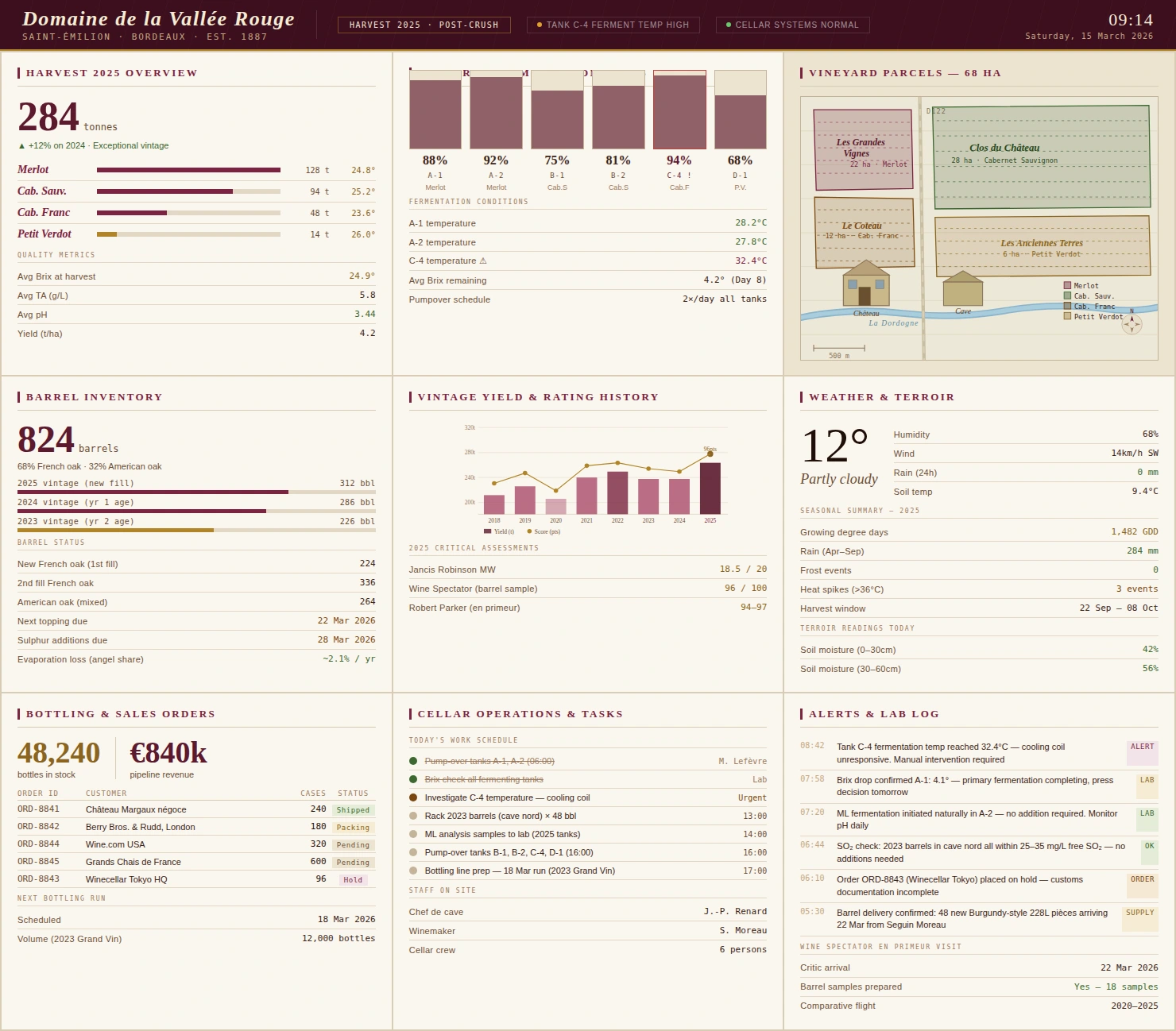
The winemaking team built a series of dashboards to monitor production performance across fermentation tanks, aging barrels, and bottling lines. These dashboards provided clear visual indicators of fermentation temperatures, sugar levels, and batch progress.
When anomalies occurred, such as temperature variations that could affect fermentation quality, alerts appeared immediately on the dashboard. Production managers could quickly investigate and adjust conditions before the issue impacted wine quality.
The dashboards also displayed historical fermentation data, enabling winemakers to compare current batches with previous vintages. This visibility helped improve consistency and refine production techniques over time.
Vineyard Performance Analytics
Vineyard managers benefited from dashboards that combined environmental sensor data with harvest and yield information. Instead of reviewing multiple monitoring tools, they could analyze soil conditions, rainfall, and temperature patterns in one place.
These dashboards revealed correlations between weather patterns and grape quality across different vineyard blocks. Managers used the insights to adjust irrigation schedules and identify optimal harvest windows.
The platform also helped forecast yield levels by combining historical harvest data with current growing conditions. This information improved planning for production capacity and distribution.

Sales and Distribution Insights
The winery’s sales team gained powerful analytics capabilities after the transition. InetSoft dashboards connected CRM data, distribution channel sales, and inventory availability.
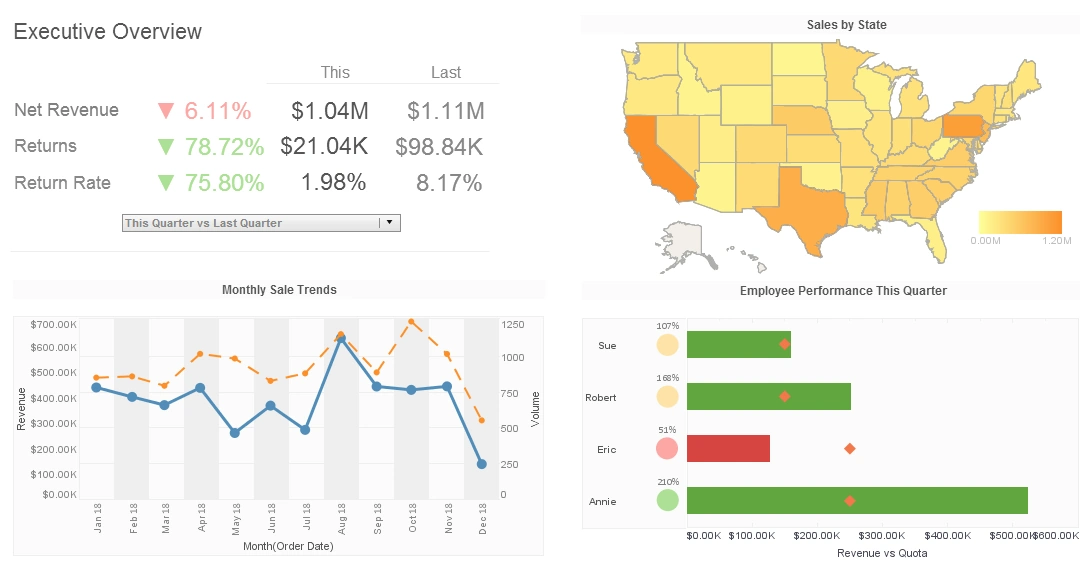
Managers could analyze tasting room sales, online orders, restaurant distribution, and retail performance within a single interface. Geographic dashboards displayed regional sales patterns and highlighted emerging markets.
These insights allowed the winery to adjust marketing campaigns and distribution strategies more effectively. For example, when a particular varietal began gaining popularity in a specific region, the sales team quickly increased shipments to distributors in that area.
Executive-Level Operational Visibility
Executives required a high-level view of the winery’s overall performance. InetSoft dashboards provided summary analytics that combined production efficiency, inventory levels, sales revenue, and customer engagement.
Leadership could quickly identify trends such as rising demand for certain wines, shifts in distribution channel performance, or changes in production costs. Instead of waiting for monthly reports, executives accessed these insights in real time.
The dashboards also enabled scenario analysis. Managers could evaluate how changes in production volume or pricing might impact revenue and inventory levels.

Empowering Business Users
Another major advantage of the new platform was the ability for non-technical users to create dashboards and reports. InetSoft’s visual design interface allowed staff members across departments to build custom views of their data.
Production supervisors designed monitoring dashboards for fermentation rooms. Marketing teams created visualizations of wine club growth and campaign performance. Finance teams tracked cost trends and profitability metrics.
This self-service approach reduced the burden on IT staff while enabling faster experimentation with new analytics ideas.
Operational Efficiency and Data-Driven Culture
The transition from MetricFire to InetSoft marked a shift in how the winery approached analytics. Monitoring infrastructure metrics remained important, but the organization now prioritized operational and business insights that directly influenced production and sales decisions.
With dashboards available across departments, employees increasingly relied on real-time data when planning harvest schedules, adjusting production processes, or launching marketing initiatives.
The winery also began holding regular performance meetings using the dashboards as the central discussion point. Teams could explore trends together, identify issues, and agree on corrective actions based on shared data.
A Scalable Dashboard Platform for Growth
As the winery continues expanding its distribution network and experimenting with new wine varieties, the InetSoft platform provides a scalable analytics foundation. Additional data sources can be integrated easily, and new dashboards can be created as operational needs evolve.
By moving from a monitoring-focused platform to a comprehensive dashboard solution, the winery gained a clearer understanding of its operations from vineyard to customer. The result is faster decision making, improved production management, and a stronger connection between data and the craft of winemaking.

More Resources About Dashboard Applications
Dashboard Data Assets - InetSoft's dashboard software gives users full command of a sophisticated array of data asset controls for a highly personalized and interactive user experience. There are two ways to save an asset; by saving the Worksheet, and by dragging the asset to the Repository. To save an asset (e.g., Variable, Named Condition, etc.) to the Asset Repository, follow these steps: 1. Mark the asset as Primary. 2. Save the Worksheet containing the asset. The asset marked as Primary determines the appearance of the saved Worksheet in the Repository, and how it can be used. To save an asset (e.g., Variable, Named Condition, etc.) to the Asset Repository, follow these steps: 1. Click the small icon in the top-left corner of the asset title bar. 2. Drag the icon over a Global Worksheet or User Worksheet folder, and release. This opens the 'Enter Asset Name' dialog box. 3. In the 'Enter Asset Name' dialog box, enter the name under which the asset should appear in the Repository, and click 'OK'. The asset is added to the repository in the desired folder under the specified name...
Dashboard Data Components - InetSoft's dashboard software has sophisticated data components that facilitate the customization of disparate sources of data. An asset is a reusable Worksheet component. The five different types of Worksheet assets are listed below. When you save an asset in the Asset Repository, you can then use that asset in multiple Worksheets and in multiple reports. You can use a Data Table from the Asset Repository in a Viewsheet, report, scorecard, or within another Worksheet. Every Viewsheet is based on a Worksheet. The Viewsheet has access to all of the Data Tables its underlying Worksheet, regardless of whether the tables are marked as Primary. To create a new Viewsheet based on an existing Worksheet, follow these steps: 1. Click the 'New Viewsheet' button in the Visual Composer toolbar. This opens the 'New Viewsheet' dialog box. 2. In the 'New Viewsheet' dialog box, expand the 'Global Worksheet' or 'User Worksheet' folders, and select the Worksheet on which the Viewsheet should be based. 3. Click 'OK' to close the dialog box and open the new Viewsheet. Alternatively, right-click the desired Worksheet in the Asset Repository, and select 'New Viewsheet' from the context menu...
Dashboard Data Conditions - InetSoft's dashboard software allows users to create conditions within a report that allow for dynamic interactive mashups. You can use a Named Condition in any Worksheet that shares the same scope as the Named Condition. To add a Named Condition to a table in a Worksheet, follow these steps: 1. Drag the Named Condition asset from the Asset Repository tree to an empty cell in the Worksheet. This creates a Named Condition object in the Worksheet. 2. Drag the new Named Condition object until its border touches the border (left or right) of the table to which you want to add the condition. 3. When the “filter” icon appears, release the Name Condition object. The Named Condition is applied to the table. If the Named Condition references attributes that do not already exist in the table, these attributes are added to the table as invisible columns. You can add multiple Named Conditions to a single table by repeating the above steps. These Named Conditions, as well as any conditions internal to the table itself, are joined together by AND operators to yield the final data filter...
Dashboard Data Extraction - InetSoft's award-winning dashboard software allows users to extract data from disparate sources and combine them into a sophisticated visual report. To create a Named Condition by extracting simple conditions from an existing table, follow these steps: 1. Select a table in the Worksheet. 2. Click the 'Name Condition' button on the toolbar. This creates a new Named Condition containing the pre-aggregate conditions in the selected table. A graphical link indicates the table from which the condition was extracted. Suppose that in a Data Worksheet we have a table listing all of the orders from the state of NY and that the table also has a pre-aggregate condition associated with it. Say the pre-aggregate condition is defined on the 'Discount' field so that only the orders that have a 'Discount' value of greater than '0.2' are included in the table...
Dashboard Data Grouping - End users have the ability to group data from disparate formats and combine them into a sophisticated visual report using InetSoft's award-winning dashboard software. The default grouping procedure simply partitions a column based on its distinct values. For example, if a column contains state abbreviations CA, NY, and WA, then the default grouping produces one group for CA, one group for NY, and one group for WA. If this default grouping is not satisfactory, you can create a different partition with Named Grouping. A Named (User-Defined) Grouping is a reusable set of custom conditions (i.e., rules) that partition the data into the desired groups. To create a Named Grouping, follow these steps: 1. Click the 'New Object' button in the toolbar, and select 'Grouping'. This opens the 'Grouping' dialog box. 2. In the 'Name' field, enter a name for the grouping assembly. This is the title of the grouping object in the Worksheet. (After the grouping object is created, you can edit the grouping name from the text field at the top of the Worksheet.) 3. If you want the grouping to be accessible to all columns of a certain data type, select the desired data type from the 'Type' menu...
Dashboard Data Transformation Tool - Looking for a good dashboard data transformation tool to prepare your data for interactive dashboards? InetSoft's pioneering dashboard reporting application enables real-time data transformation connected to live data sources to power great-looking web-based dashboards, all with an easy-to-use drag-and-drop designer and SQL editor. View a demo and try interactive examples...