InetSoft Product Information: Financial Dashboard Reports
Looking for software for making financial dashboard reports? InetSoft offers a web-based dashboard platform that enterprises can deploy quickly easily build any kind of financial dashboard. View a demo.
Changing Dashboard Assets - InetSoft's dashboard software provides users with the flexibility to make changes to dashboard data assets in real-time as the need arises. o modify a non-tabular asset (Named Condition, Named Grouping, Date Range, or Variable), right-click the asset title bar, and select 'Properties' from the context menu. To mark an asset as the Primary asset, right-click on the asset's title row, and select 'Set as Primary' from the context menu. The Primary asset is displayed with a bold title. The Primary asset is the “main result” of the Worksheet. It is this Primary asset that you will access from within reports or other Worksheets. When you save a Worksheet, the Primary asset determines the appearance of the Worksheet in the Asset Repository, and how the Worksheet can be used. You can delete an asset inside the Worksheet that contains it. You can also delete an entire Worksheet in the Asset Repository. To delete a table or other Worksheet asset, follow these steps...
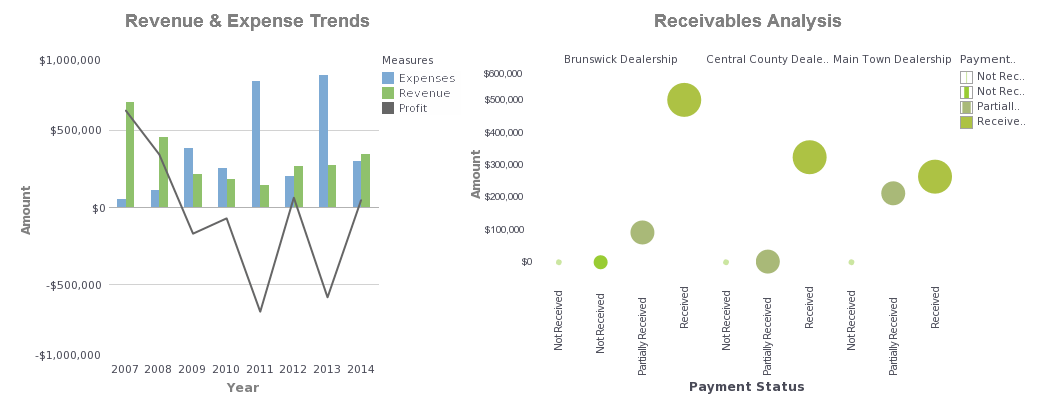 |
Click this screenshot to view a two-minute demo and get an overview of what InetSoft’s BI dashboard reporting software, Style Intelligence, can do and how easy it is to use. |



Changing Dashboard Images - InetSoft's dashboard software gives users the flexibility to change dashboard images in order to provide a clear and concise data display. You can dynamically set the image file (gif, jpg, etc.) of an image component using a variable or an expression. Follow the steps below: 1. Add an image element into the Viewsheet. Right-click and select the 'Properties' option. This opens the 'Image Properties' dialog box. 2. Select the Advanced tab and select 'Dynamic Image Selection'. 3. From the drop-down menu, select 'Expression' or 'Variable', depending on the mechanism you wish to use to set the image property. 4. If you choose 'Expression', click the 'Formula Editor' button, and add a script in the text area. A typical script might take the following form: if(condition) { 'image1.gif'; } else { 'image2.gif'; } You can specify an image by the uploaded image name (e.g., 'image1.gif') or a resource path on the server (e.g., '/library/image1.gif'). 5. Click 'OK' to close the Formula Editor, and then click the 'OK' to close the 'Image Properties' dialog box. The Image component now displays the specified image file...
Changing the Appearance of a Dashboard Chart - You can change the static appearance of chart elements by using a static VisualFrame. For example, you can set static colors, sizes, and textures to enhance the aesthetic appearance of a chart. Consider the script below. This creates a basic point (scatter) chart displaying the dimensions 'State' and 'Quantity'. However, the points are rather small and hard to see. To increase the size of the points and assign them a bolder color, use a StaticColorFrame and a StaticSizeFrame. Follow these steps: 1. Create a new StaticColorFrame object, and specify a static color (red). 2. Create a new StaticSizeFrame object, and specify a static size. 3. Assign the StaticColorFrame and StaticSizeFrame objects to the GraphElement. The complete script is shown below. The points are now large and red...
ChartMogul Dashboard Application - Looking for a good dashboard application for ChartMogul? InetSoft's pioneering ddashboard platform can mashup your subscription billing data with other enterprise sources. Make great-looking cloud-based dashboards with an easy-to-use drag-and-drop designer. View a demo and try interactive examples...
City Governments Use Dashboards - To know how city governments use dashboards, let's understand what a dashboard is in the very first place. Dashboard, in brief, is the summarization of the most important information. It tells you what are the important goals for your organization and the best measures for them. It offers proper analysis and context. Dashboards show the information in an aesthetic way. Readers will not get bombarded with massive information. When it comes to municipalities or the local government, their dashboard is not just a sheet embedded with colorful graphs. It's more like a few pages of information, offering you information just like a story. In this article, the examples that you will notice are mostly websites that convey relevant information in a sequential way. So, how do we start with telling the story of your organization? The first element is definitely a strong introduction...
ClicData vs InetSoft Comparison - So how does InetSoft's Style Intelligence weigh against ClicData? From the latest G2 crowd ratings, it is pretty impressive. InetSoft has received rave reviews from a majority of its users and beats ClicData in various categories across the board. Style Intelligence has been lauded for its robustness and described as a complete and powerful go-to tool for data analysis...
Cloud Based KPI Dashboard Application - Are you looking for a good web based KPI dashboard application? InetSoft's pioneering dashboard reporting solution produces great-looking interactive dashboards with an easy-to-use drag-and-drop designer. Maximize self-service for all types of users. No dedicated BI developer required. View a demo and try interactive examples...
 |
“Flexible product with great training and support. The product has been very useful for quickly creating dashboards and data views. Support and training has always been available to us and quick to respond.
- George R, Information Technology Specialist at Sonepar USA
|
Cloud Dashboard Alternative to Microsoft - Looking for an alternative to Microsoft's cloud dashboard solution? InetSoft is a pioneer in self-service dashboarding and makes it easy to create attractive dashboards and advanced data visualizations. View a demo and try interactive examples...
Cloud Dashboard Examples - Looking to view and/or build dashboards in the cloud? InetSoft's dashboard web application can be installed either on-premise or in the cloud, on a remote server provided by Amazon web services or any other provider...
Cluster Kubernetes Dashboarding - Are you looking for a good dashboard application that supports Kubernetes? InetSoft's pioneering dashboard reporting platform includes a built-in implementation of Kubernetes. This greatly facilitates the installation and management of the platform. Produce great-looking web-based dashboards with an easy-to-use drag-and-drop designer. Maximize self-service for all types of users. View a demo and try interactive examples...
College Ranking Analysis Dashboard - The College Ranking Analysis Dashboard below represents one of the many diverse capabilities and industries InetSoft has reached using a unique and intuitive business intelligence solution since 1996. Focusing primarily on the user, the interactive dashboard is powerful, yet simple enough for users to navigate and enjoy the capabilities of InetSoft's full-fledged software. The chart below shows the in-depth nature of how information is displayed for a set of distinct data. Simple-to-use, the dashboard presents users with two different types of metric systems along with a scatterplot and a detailed chart of school rankings. InetSoft's data mashup technology, Data Block, allows users to pull data from a large set of databases and use them to make comparisons, charts, metrics, and graphs. The overall result of these charts and metrics can then be used to conduct high quality analysis InetSoft's visualization software combines ease of use with detailed tools and features to help users in day-to-day operations, as well as help them keep track of real-time data to respond quickly to any changes...
Color Dashboards - There are a dozen colors in the classic color wheel, but InetSoft's color dashboards throw in several dozen more. Avoid critical and costly errors by color coding all of your data. View this article to learn how. You can represent data values using the following visual formats: Color, pattern, size, or text. These formats can be applied to an entire dataset or to a subseries within a dataset. The following sections explain how to add visual formats to a dataset. To add a fixed visual format (not keyed to data), click the ‘Edit’ button in one of the format fields in the ‘Visual’ pane: ‘Color’, ‘Shape’, ‘Size’. If no dimension or measure is specified for that field, the selected format is applied globally. If a dimension or measure is specified for the field, the formatting is keyed to the data in that field; see the related sections for more information. To add a visual format to a dimension, simply drag the desired dimension from the ‘Data Source’ tree to the desired format field in the ‘Visual’ pane (‘Color’, ‘Shape’, ‘Size’, or ‘Text’). If the dimension is not already used on the chart X-axis, this creates a new subseries using the specified formatting...
Combining Dashboard Data - Users can combine data from several sources using InetSoft's award-winning dashboard software - a robust feature filled business intelligence application that produces brillant data visualizations. One of the Data Worksheet's most powerful capabilities is combining tables from different data sources into unified Data Blocks. This section explores the different ways that Data Tables can be combined. A Concatenated Table is a table generated by one of the following set operations: Union, Intersection, and Minus. These set operations are called concatenations. Candidate tables for concatenation should have the same number of columns, and corresponding columns of each table should have the same data type. A Concatenated Table is a type of Composition Table. See Editing a Composition Table for information about other properties of Composition Tables. You can only concatenate two tables at a time, but any Concatenated Table can be used in further concatenations. To concatenate multiple base tables, first concatenate two of the base tables, and then concatenate the resulting Concatenated Table with the third base table, and so on...
Commerce Department Dashboard Example - The Department of Commerce is charged with facilitating economic activity and monitoring the health of the US economy. Data is the cornerstone of economic analysis and the Department publishes an entire guide at https://www.commerce.gov/sites/default/files/2021-08/US-Dept-of-Commerce-Data-Strategy.pdf describing its data strategy. The Bureau of Economic Analysis (BEA) assembles and processes vast quantities of economic data, and provides these insights to economists, policy-makers, and the public. It provides a set of business intelligence wizards at https://apps.bea.gov/itable/index.cfm that allow anyone to slice and dice recent economic data and gain insight into the health of the economy.
Compatible data.world Dashboard Solution - Looking for a good dashboard solution that is compatible with data.world? InetSoft's pioneering BI application produces great-looking cloud-based dashboards with an easy-to-use drag-and-drop designer. View a demo and try interactive examples...
Comparing Dates in a Dashboard - Charts and Crosstabs provide an easy way to compare data across different date ranges. For example: Compare this quarter's sales to the previous two quarters Compare this January's sales to each of the past five January's sales Compare each day last week to each day this week, showing percent change To perform such date comparisons in a Chart or Crosstab, follow the steps below. NOTE: The Chart or Crosstab must contain a Date-type field. Date comparisons use color to distinguish date groups unless the original chart already uses color; in this case, the axis is used to distinguish date groups. 1. Press the 'More' button in the top corner of Chart or Crosstab, and select 'Date Comparison'...
Competitor to Datapine's Dashboard Application - Are you looking for a good alternative to Datapine's dashboard application? InetSoft's pioneering dashboard reporting application produces great-looking web-based dashboards with an easy-to-use drag-and-drop designer. Get cloud-flexibility for your deployment. Minimize costs with a small-footprint solution. Maximize self-service for all types of users. No dedicated BI developer required. View a demo and try interactive examples...
Compliance Operations Analyst Dashboards - A Compliance Operations Analyst utilizes performance tracking dashboards as a crucial tool to monitor and analyze compliance-related activities within an organization. These dashboards provide a visual representation of various metrics, key performance indicators (KPIs), and trends, allowing analysts to gain insights into the compliance operations and identify areas for improvement. Here's how a Compliance Operations Analyst can use performance tracking dashboards effectively: Monitoring Compliance Metrics: Dashboards display real-time or near real-time data related to compliance metrics, such as the number of compliance incidents, regulatory violations, or policy breaches. Analysts can monitor these metrics regularly to gauge the overall compliance health of the organization and identify any emerging patterns or issues. Identifying Trends and Patterns: By observing trends and patterns depicted in the dashboard, analysts can identify recurring compliance issues, potential risks, or areas where compliance efforts may be falling short. For example, if a specific policy or regulation consistently shows a high number of violations, it may indicate the need for targeted training or enhanced controls in that area...
Computer Dashboard Software - The name of the game is Computer Dashboard Software. Designs that are easy to use and easy to deploy, conscious of the latest technologies to improve and to have cutting edge innovation. We are a business intelligence software company offering visually-compelling, interactive computer dashboard that ensures greater end-user adoption plus pixel-perfect report generation, scheduling, and bursting. We believe software should be seamless. Quick, easy, accessible. Experience our free Demo and Test Drive our dashboard with ease! We help compile and assist in the creation to optimize the use of your data...